WinTAK Installation
WinTAK provides integration with TAK (Team Awareness Kit) servers for situational awareness and coordination with ground teams. It runs in a Windows 11 VirtualBox virtual machine.
Overview
WinTAK is configured to auto-start on boot and connects to the AirLab TAK Server. This integration enables:
- Sharing robot positions and status with TAK-enabled teams
- Receiving waypoints and mission data from TAK clients
- Coordinating multi-agent operations across air and ground assets
- Integration with existing TAK infrastructure

Installation
Using AirStack CLI (Recommended)
The recommended way to install WinTAK is using the AirStack CLI tool:
This will:
- Download the necessary files from airlab-storage
- Install VirtualBox
- Import the WinTAK virtual machine
- Configure the necessary credentials and settings
Manual Installation
Alternatively, you can run the setup script directly:
# Move to the GCS installation directory
cd gcs/installation

# Execute the setup script
./setup_gcs.sh
Usage
Starting and Stopping WinTAK
Once installed, control WinTAK using the AirStack CLI:
# Start WinTAK virtual machine
airstack wintak:start

# Stop WinTAK virtual machine
airstack wintak:stop
First Boot
Password Reset
If prompted to reset the password on first boot, choose your own memorable password.

System Requirements
Host Machine:
- Virtualization: VT-x/AMD-V enabled in BIOS
- RAM: Additional 4GB for VM (8GB total recommended)
- Storage: Additional 20GB for VM disk
- Network: Internet access for TAK server connection
Software:
- VirtualBox: Installed automatically via
airstack install --with-wintak - OS: Windows 11 (provided in VM image)
Configuration
TAK Server Connection
WinTAK is pre-configured to connect to the AirLab TAK Server. To modify the connection:
- Start WinTAK VM
- Open WinTAK application
- Navigate to Settings → Server Configuration
- Update server address, port, and credentials as needed
ROS 2 Integration
The ros2tak_tools package bridges ROS 2 topics to TAK protocol:
Location: gcs/ros_ws/src/ros2tak_tools/
Key topics:
- Robot positions → TAK CoT (Cursor on Target) messages
- TAK waypoints → ROS 2 navigation goals
- Mission data synchronization
Troubleshooting
VM won't start:
- Verify VT-x/AMD-V enabled in BIOS
- Check VirtualBox installation:
vboxmanage --version - Ensure sufficient RAM available (4GB+ free)
TAK server connection issues:
- Verify network connectivity to TAK server
- Check firewall settings
- Confirm TAK server credentials in WinTAK settings
Performance issues:
- Allocate more RAM to VM in VirtualBox settings (recommended: 4GB)
- Allocate more CPU cores (recommended: 2 cores)
- Close unnecessary applications on host machine
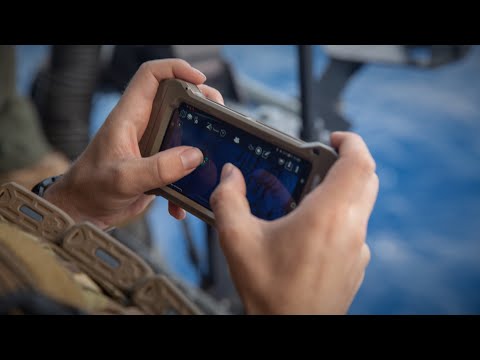
Learn More About TAK
For background on TAK systems:
See Also
- GCS Overview - Main Ground Control Station documentation
- Command Center - Mission planning with TAK integration
- ROS 2 TAK Tools Package - ROS 2 to TAK bridge implementation